Custom Domain
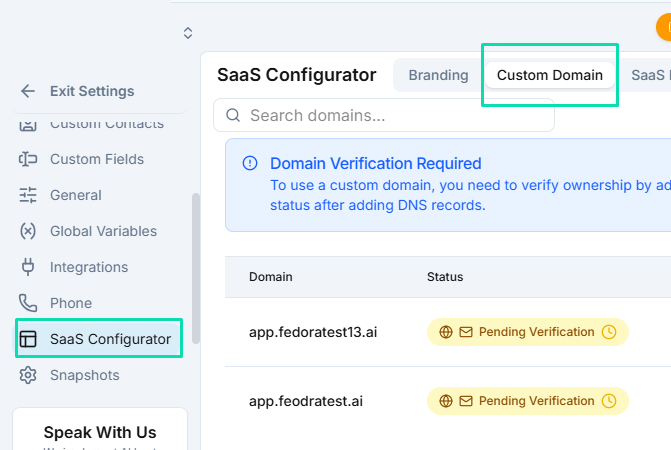
A custom domain replaces the default URL with your own branded subdomain, so your clients log in at an address like app.yourbrand.com. This is a key step in making the white label experience seamless.
Setting Up Your Subdomain
Your login domain is always a subdomain of your main domain. Common choices include:
app.yourbrand.comlogin.yourbrand.comportal.yourbrand.com
Enter your chosen subdomain under Settings > SaaS Configurator > Domain, then follow the DNS instructions provided.
Never put the login on your main domain (yourbrand.com) if your website lives there. The login record replaces whatever that address serves today, so your website would go offline.
If your subdomain already points somewhere else, such as an old platform you used before, either pick another subdomain or replace that record on purpose. Publishing the new record takes the subdomain away from whatever it serves now.
Help Center
You can also turn on a help center for your clients at docs.yourbrand.com. It is a help site with your logo and company name, and it needs one more DNS record, which the platform shows you alongside the login record.
DNS Configuration
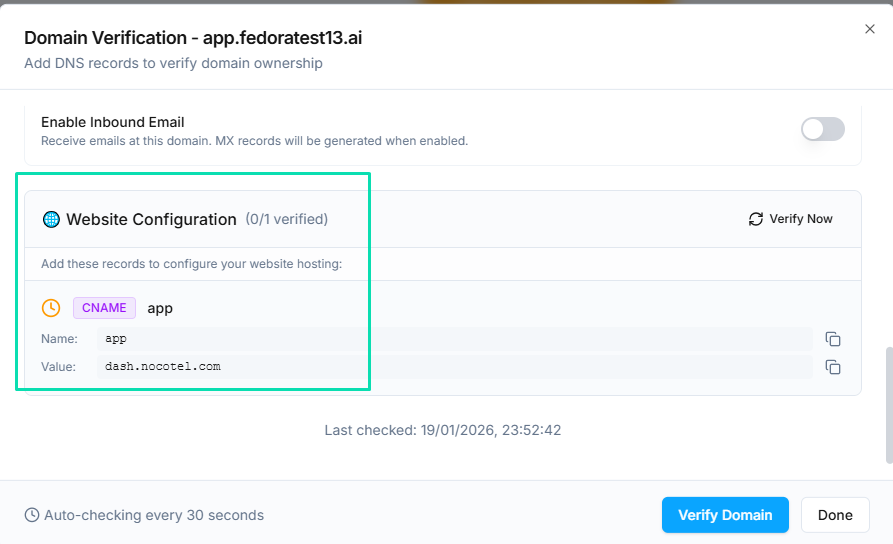
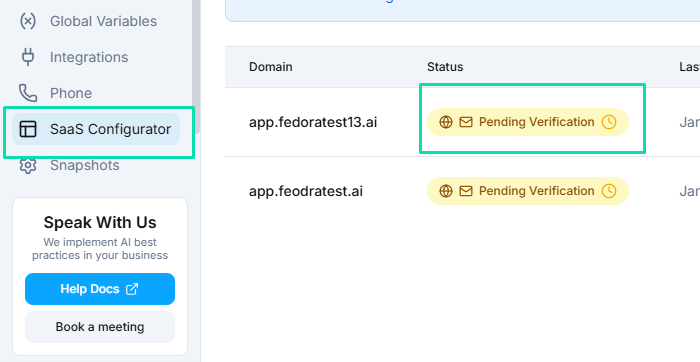
You will need to add DNS records at your domain registrar or DNS provider. The platform provides the exact records you need to create. Typically this involves:
- A CNAME record pointing your subdomain to the servers.
- A CNAME record for the help center, if you turned it on.
DNS changes can take up to 48 hours to propagate, though most complete within a few minutes.
Email Goes on Your Main Domain
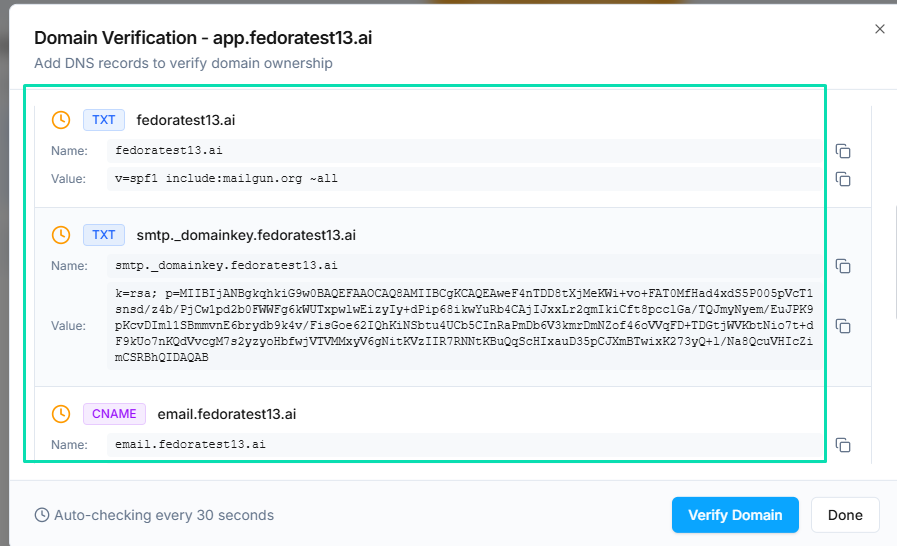
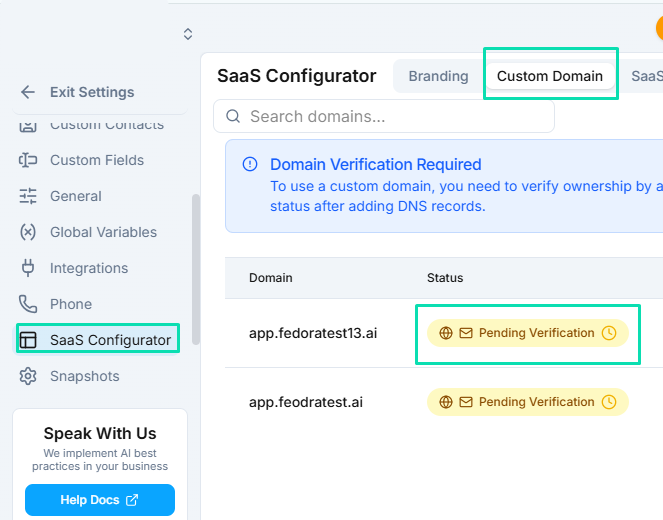
Your login domain never sends email. A login address uses a CNAME record, and DNS does not allow email records on the same name, so the records email needs cannot be published on app.yourbrand.com.
Connect email on your main domain instead (yourbrand.com) under Settings > Integrations > Email Domains. System notifications and automated emails then come from addresses like noreply@yourbrand.com, and you can receive your clients' replies there too. See Connecting Your Email Domain for the steps.
If an older login subdomain of yours still has email turned on and that email is not verified, its row shows a notice explaining why, with a Turn off email button.
Turning Off Email or the Login on a Domain
You do not have to delete a domain to change what it does. Open the domain's row actions (or its verification window) and choose:
- Turn off email: the domain stops sending and receiving email. The login and the help center keep working. If the domain only sends email, remove the domain instead.
- Remove the login from this domain: clients can no longer log in at this address. Email and the help center on the domain keep working, and a verified email domain keeps its signing key, so you do not need to publish new email records.
Each action asks you to confirm and tells you what stops and what keeps working before anything changes.
Next Steps
- SaaS Configurator --- update your branding and support details
- Sender Identities --- connect email on your main domain
- Signup Forms --- create checkout pages on your custom domain for new customers